Keyboard shortcuts and tips
Work faster with the keyboard. On a Mac, use ⌘ Cmd wherever this page says Ctrl.
Do it now in the free PDF editorOpens in your browser. No sign-up, no watermark — your PDF is never uploaded.
Open the PDF editorGet faster in four habits
- Press Esc to get back to Select after using a tool.
- Use Ctrl+C and Ctrl+V to repeat a signature, logo or note on other pages — it keeps its position.
- Let the pink alignment guides line things up for you, and hold Alt when you want to place something freely.
- Undo anything with Ctrl+Z — page changes included.
See how it works
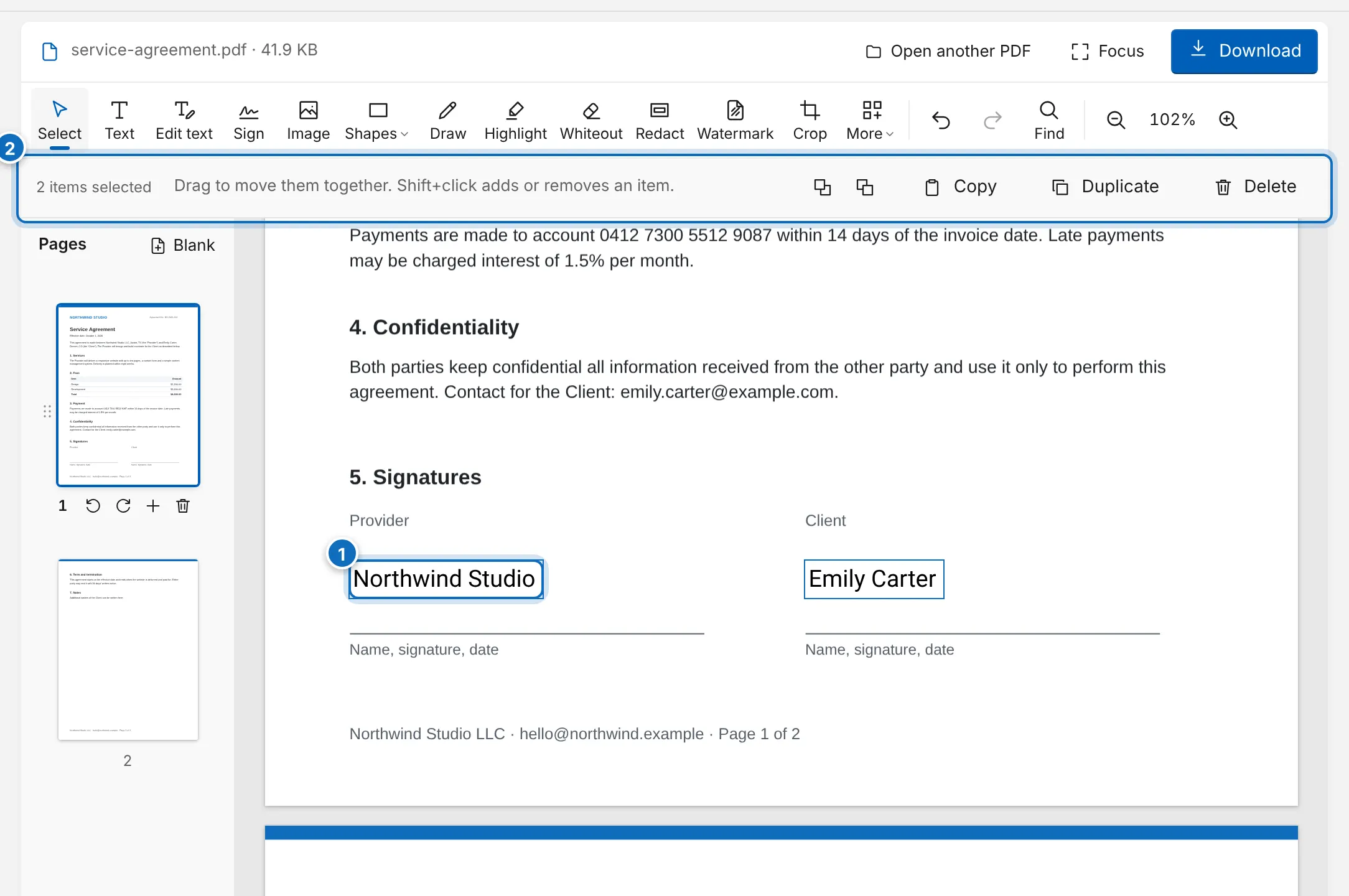
- 1Drag a box over empty space or Shift+click to select several items
- 2Move, copy, change layers or delete them together
General
| Ctrl+Z | Undo |
| Ctrl+Y · Ctrl+Shift+Z | Redo |
| Ctrl+F | Find text in the document |
| Ctrl++ / Ctrl+− | Zoom in / out (25% to 400%) |
| Ctrl + mouse wheel | Zoom around the pointer |
| Esc | Close a menu, clear the selection, return to Select, leave focus mode |
Selecting and arranging
| Ctrl+A | Select every item on the current page |
| Shift + click | Add an item to the selection, or remove it |
| Drag on empty space | Select everything inside the rectangle |
| ← ↑ → ↓ | Nudge the selection by 1 point (10 with Shift) |
| Alt + drag | Move without snapping to alignment guides |
| Ctrl+] / Ctrl+[ | Bring forward / send backward |
| Ctrl+Shift+] / [ | Bring to front / send to back |
| Delete | Delete the selection |
Copy and paste
| Ctrl+C | Copy the selection |
| Ctrl+X | Cut the selection |
| Ctrl+V | Paste on the current page — also text or images copied from other apps |
| Ctrl+D | Duplicate the selection |
Text
| Enter · double-click | Edit the selected text box |
| Enter while typing | New line |
| Esc while typing | Finish editing |
Find bar
| Enter | Next match |
| Shift+Enter | Previous match |
| Esc | Close the find bar |
Page thumbnails
| ↑ / ↓ | Go to the previous or next page |
| Alt+↑ / Alt+↓ | Move the page up or down |
| Delete | Delete the page |
Tips for working on a touch screen
- Tap Focus for a full-screen editor with more room for the page.
- Tap Pages to open the page thumbnails, and the × button to close them again.
- Tap an item to select it; drag it with one finger. Scroll the page with one finger when the Select tool is active.
- The pen follows your finger or stylus, so you can sign and write naturally.
Frequently asked questions
Do the shortcuts work on a Mac?
Yes. Use Cmd instead of Ctrl, for example Cmd+Z to undo and Cmd+V to paste.
Why does Ctrl+Z not undo inside a text box?
While you are typing in a text box, Ctrl+Z ends the editing and undoes the change to that text box. In form fields, the browser’s own undo is used.
Can I paste text from Word or a web page?
Yes. Copy the text, click on a PDF page in the editor and press Ctrl+V. It is added as a text box in your current text style.
Ready to try it?Drop your PDF into the editor and download the result in seconds.
Open the PDF editorMore guides
